Yes, ChatGPT can make animated GIFs directly from a prompt using OpenAI’s Images 2.6 model, which works as a built-in AI GIF generator for reactions, transparent stickers, UI loaders, and short product loops. We did not run our tests inside the ChatGPT app; instead, we generated 20 real loops (15 copyable prompts plus 5 controlled comparisons) in ChatCut using the exact same OpenAI models, GPT Image 2.6 Flare and Sunburst, and unpacked every frame to check how they hold up.
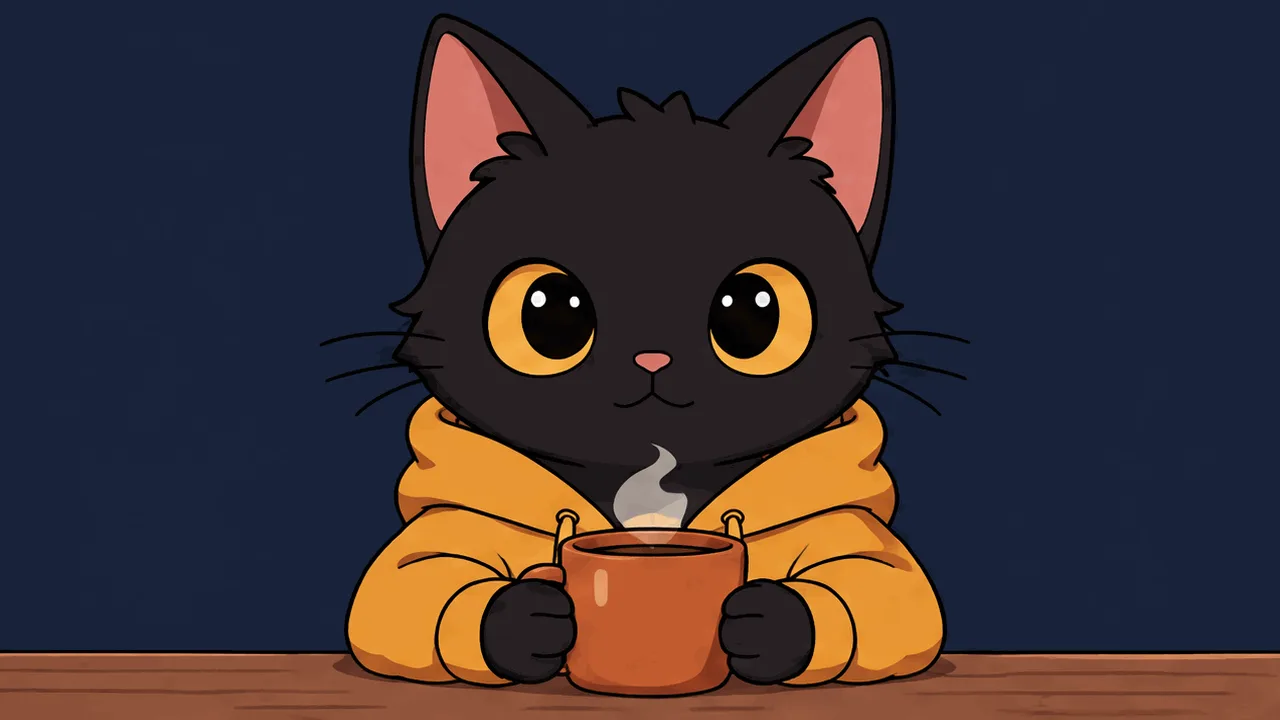
Before you copy a prompt, watch our opening test of a hooded black cat holding a hot mug of coffee:
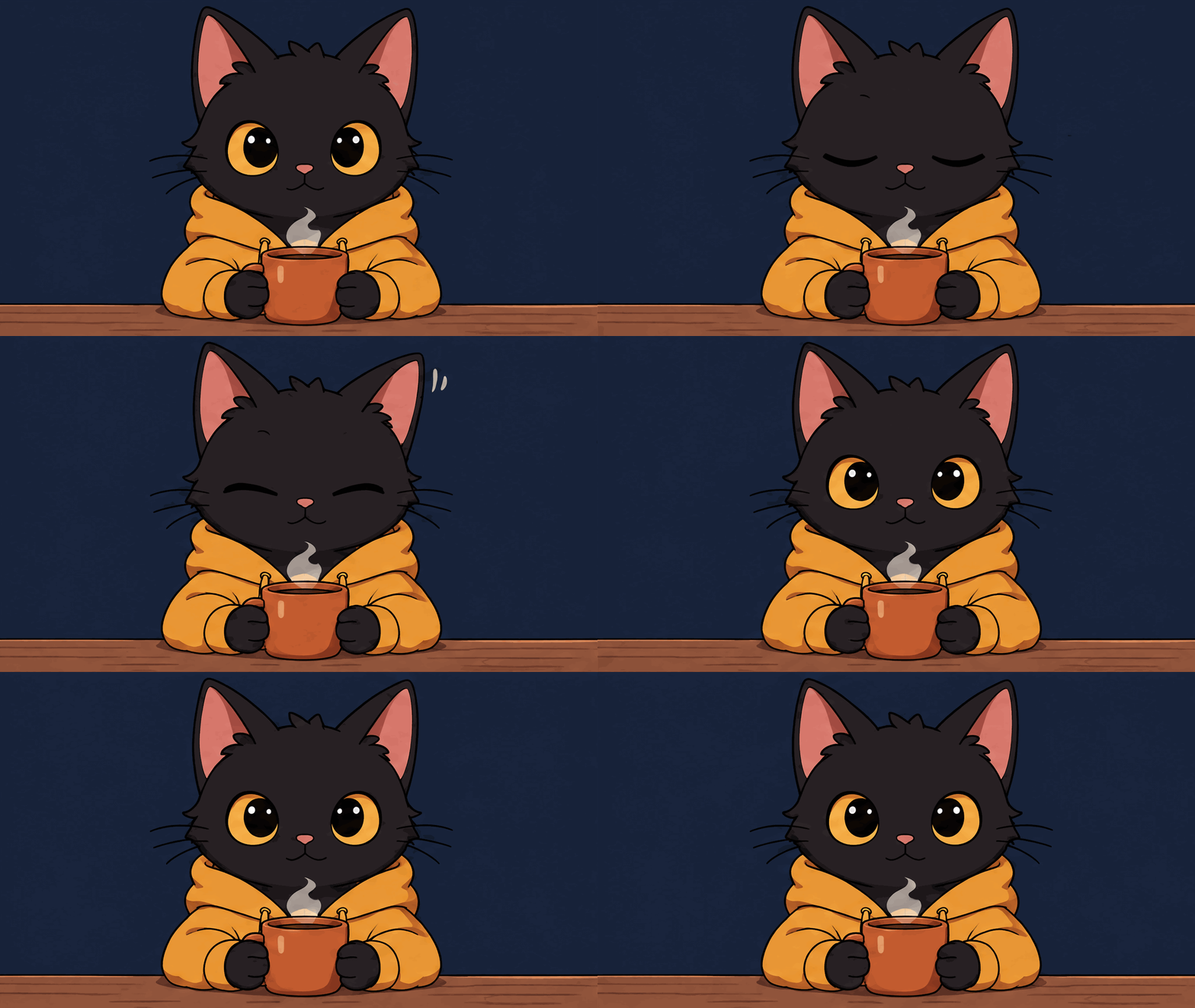
Watch the cat’s right ear on the blink. It does not slide smoothly across pixels the way a video model moves footage, and it is no longer the old ChatGPT Python trick of cross-dissolving six separate panels. When we extracted all 9 frames at 1280×720, the ear stayed still until frame 4, where the model drew a tilted ear with two white comic twitch lines beside it while stepping the eyelids through four distinct cel-shaded drawings. Images 2.6 paints 2 to 16 frames onto a single 1K generation sheet, slices them apart, and packs them into a 256-color looping GIF.
Can ChatGPT Make GIFs? How Images 2.6 Builds Loops in ChatGPT and ChatCut
OpenAI added native animated GIF generation on November 4, 2026 in its Introducing Images 2.6 release. Because the same model powers both ChatGPT and API-connected creative tools, you can use it as an AI GIF maker in two places depending on how much control you want over timing, transparency, and editing.
Making a GIF in the ChatGPT app
We did not test inside the ChatGPT app itself, so the steps below come directly from OpenAI’s Images in ChatGPT help guide and release documentation:
- Open ChatGPT on web or mobile and ask explicitly for an animated GIF or looping GIF, describing one repeatable action and a fixed camera.
- Optionally click the + button to upload a photo if you want the model to build the animation around an existing subject or product.
- Once the GIF renders in chat, use the built-in viewer controls to adjust playback speed, inspect individual frames, or ask in a follow-up message to revise a detail before downloading the GIF file.
Making a GIF in ChatCut (same OpenAI models, direct settings)
In ChatCut Desktop, you run the same two OpenAI models, GPT Image 2.6 Flare and GPT Image 2.6 Sunburst, either from the Image Gen composer or by asking the ChatCut Agent in plain English (or through your own Claude Code, Codex, or Antigravity session connected to ChatCut). Unlike chat-only generation, you can set the exact loop controls documented in OpenAI’s Image Generation API guide and drop the result straight onto a video track:
| Setting | Allowed values | Default | What we saw in testing |
|---|---|---|---|
| Model | GPT Image 2.6 Flare or Sunburst | Flare | Identical credit price at matching settings. Flare finished in roughly 15 to 25 seconds; Sunburst took 2 to 4 times longer and held small lettering steady across every frame. |
| Output format & size | outputFormat: "gif" at imageSize: "1K" | PNG, 1K | Native GIF output only runs at the 1K sheet tier. Because all frames share one sheet, adding more frames lowers per-frame pixel dimensions. |
| Frame count | frameCount: 2 to 16 | 9 frames | At 16:9, 8 frames render at 1344×752 px, 9 frames at 1280×720 px, and 16 frames at 960×528 px. At 1:1, both 4 and 8 frames render at 960×960 px. |
| Frame duration | frameDurationMs: 20 to 2000 ms | 200 ms | Rounded to 10 ms. Multiply frameCount by frameDurationMs for one loop’s length (9 frames at 200 ms equals 1.8 seconds). |
| Background | background: "transparent" (or auto / opaque) | auto | Setting transparent writes real transparent outer pixels, ready to overlay as a video sticker without keying. |
For a broader look at static edits, SVG vectors, and how the complexity setting works across both models, see our sibling GPT Image 2.6 guide.
Four Prompt Rules Before You Run Text to GIF
Across 20 test runs (9.64 ChatCut credits total), four habits separated clean loops from jittery ones. OpenAI’s own Image Prompting guide highlights the first three, and the fourth comes straight from GIF’s 1980s color math:
- Lock the camera in the first clause. Write “locked front-on camera” or “locked tripod studio shot”. Panning or zooming across 8 or 9 frames turns into a slideshow jump at the loop point.
- Animate one reversible motion and freeze everything else. Name the single moving part (blinking eyes, rising steam, a swinging needle) and state what must never move (the coffee bag label, the desk, the window frame).
- Close the loop in the final sentence. End with “returns to the exact starting pose on the final frame for a clean loop”. Without an explicit return instruction, frame 8 or 9 stops mid-gesture and snaps hard back to frame 1.
- Favor flat colors over soft photographic gradients. Every GIF is quantized to a 256-color palette. Flat vector art and cel-shaded stickers stayed crisp and compact (85 KB to 616 KB in our runs), whereas studio stone and skin lighting forced heavy dithering that pushed 9-frame files past 3 MB. For general composition and text-rendering phrasing on OpenAI’s image family, check our 20 GPT Image 2 prompts guide.
15 Tested ChatGPT Images 2.6 GIF Prompts That Loop
Every GIF below was generated directly from text in ChatCut at high quality, inspected frame by frame, and measured on disk without external post-compression.
Reaction GIFs (Prompts 1 to 2)
1. Fast-typing glasses frog for work chats
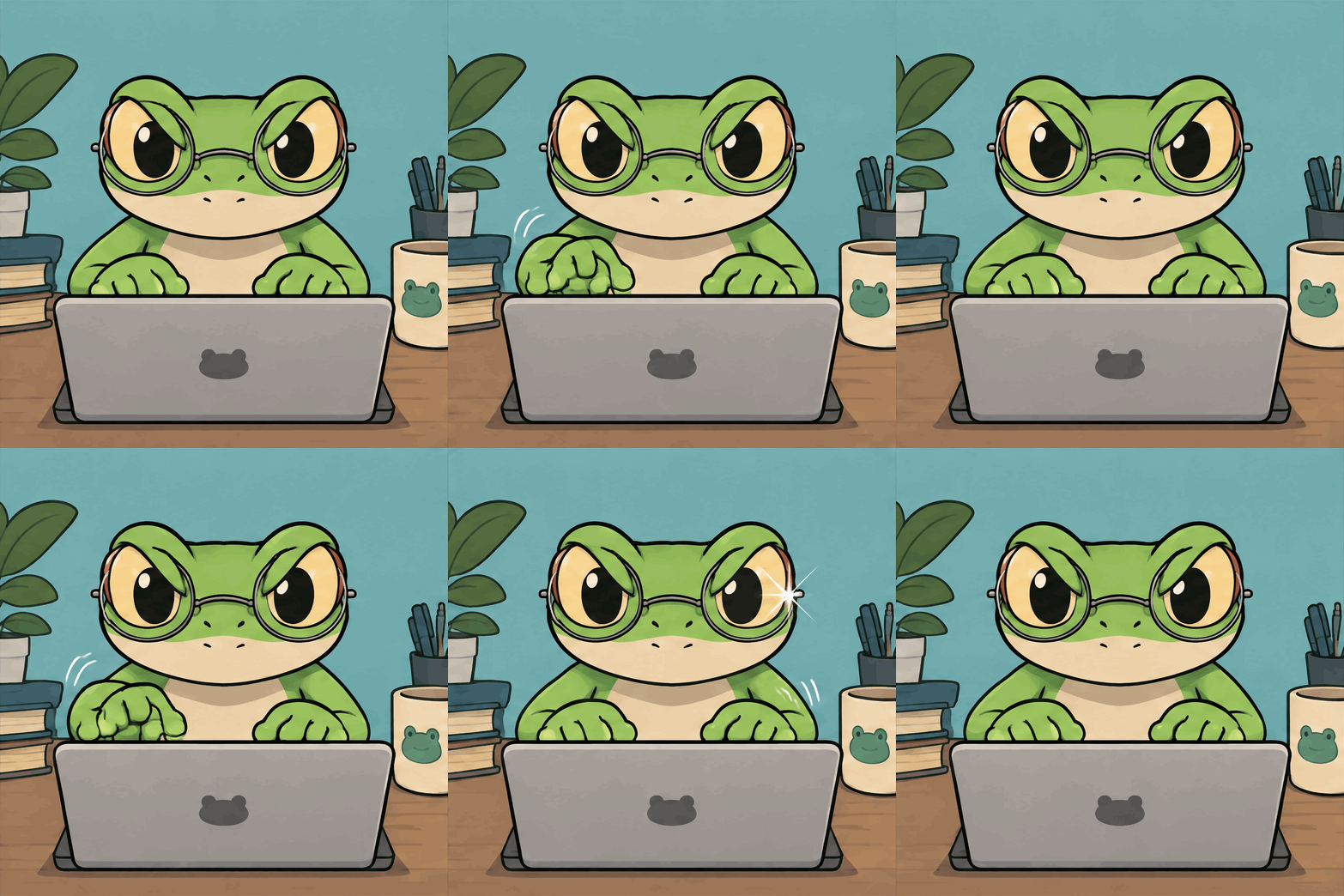
What we saw on the frames: Frames 2, 3, 5, 6, and 7 alternate left and right webbed paws with comic motion arcs, a crisp four-pointed white glint pops on the right eyeglass lens on frame 7, and frame 8 sets both hands back on the home row to match frame 1. Dropping frameDurationMs from the 200 ms default down to 110 ms sells urgent typing speed.
2. Retro 16-bit golden retriever thumbs-up
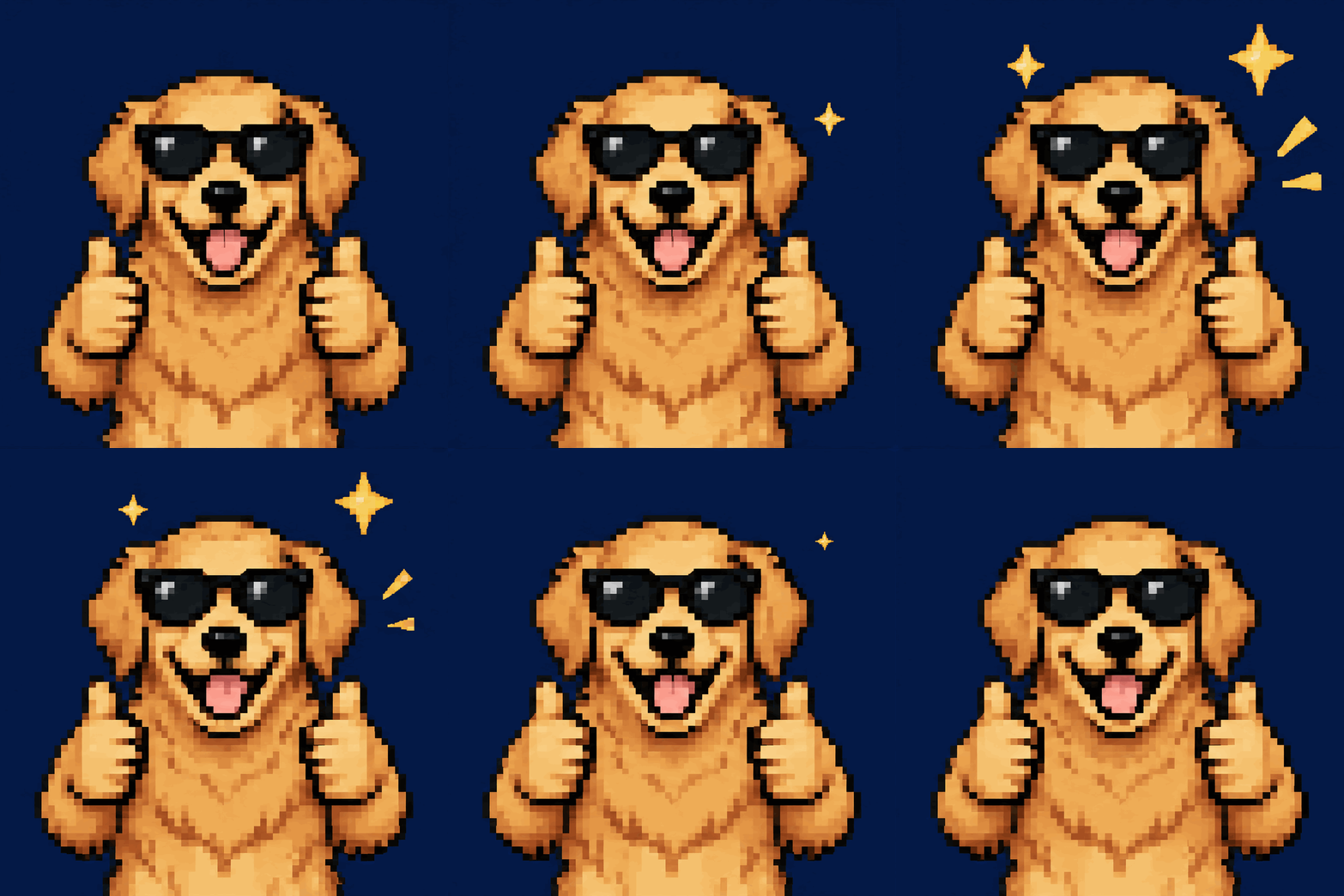
What we saw on the frames: Frame 1 and frame 8 both have a clean navy background with zero stars, while frames 2 through 7 pop four-pointed yellow stars and burst ticks around the dog’s head. Watch the output dimensions if you want a custom chat emoji: even pixel art renders on a 960×960 canvas (1.19 MB), so you will still scale it down to 128×128 px for Slack or Discord emoji slots.
Transparent Background Stickers (Prompts 3 to 4)
3. Die-cut 3D clay star hop (background: "transparent")
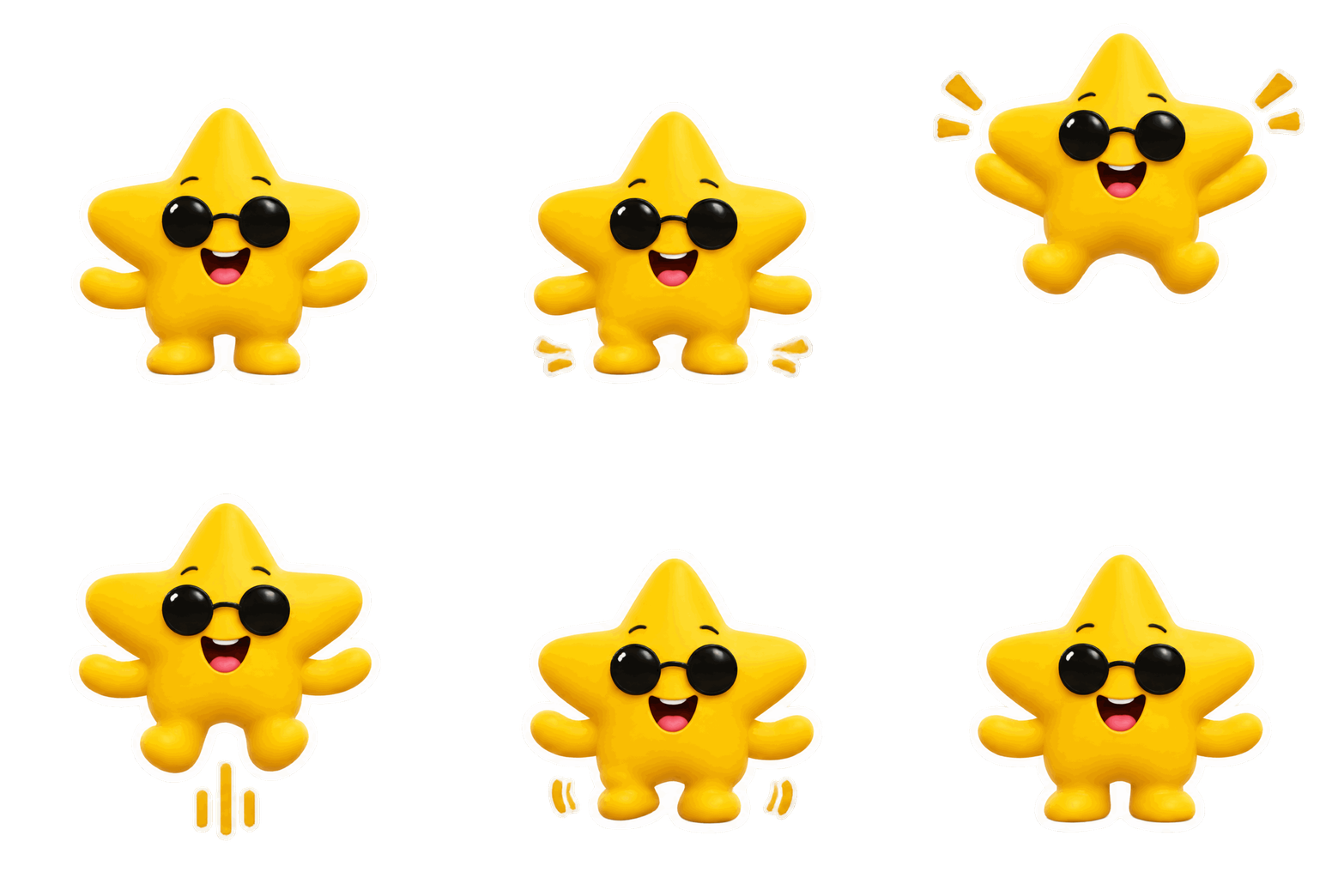
What we saw on the frames: Setting background: "transparent" produced genuine transparent pixels outside the white die-cut border, and at 488 KB (499,887 bytes) it landed right under Apple’s 500 KB iMessage Sticker limit on the first try. Asking for “a thick white sticker border” is worth keeping: GIF transparency is 1-bit (fully transparent or fully opaque, with no soft semi-transparent shadow), so a solid white border hides jagged edge pixels over dark footage.
4. Street-art “SHIP IT!” badge sticker (background: "transparent")

What we saw on the frames: We switched to Sunburst here because tilting text across 8 frames is where smaller models garble letters. All 8 frames kept “SHIP IT!” sharp while rocking left on frames 2 to 4, passing center on frame 5, rocking right on frames 6 to 7, and settling flat on frame 8.
When you drop a generated GIF onto the ChatCut timeline, one clip spans exactly one loop (1.20 seconds, or 36 frames at 30 fps, for the clay star). To keep a sticker playing across a longer hook, place copies back to back on an overlay track; editing and previewing on the timeline uses zero credits:
Product Loops (Prompts 5 to 6)
5. Packaging hero shot with rising espresso steam
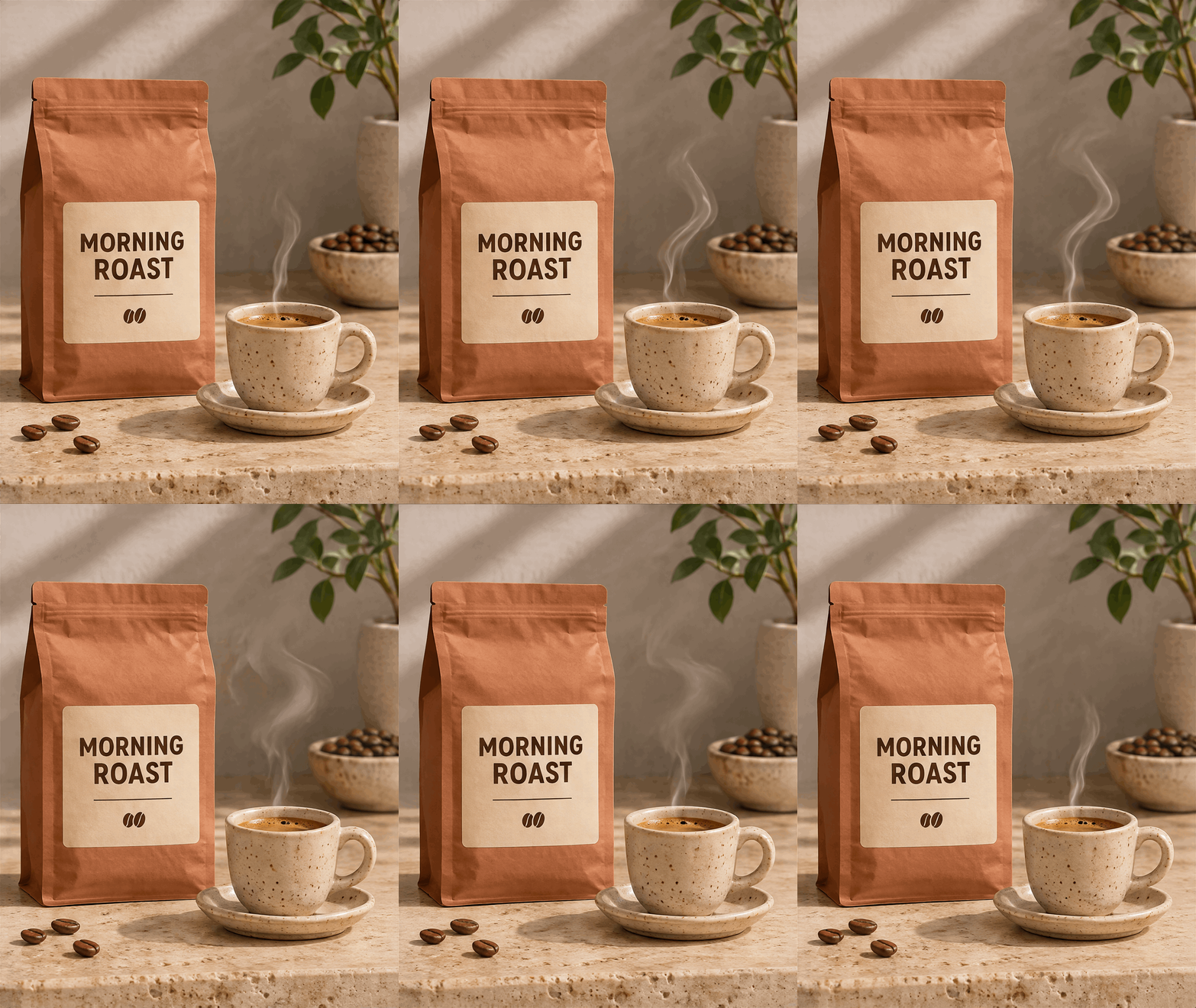
What we saw on the frames: Sunburst locked the “MORNING ROAST” typography, the three loose coffee beans, and the travertine grain across all 9 frames while lifting and settling only the steam. Notice the file size: 4:5 at 9 frames outputs at 848×1072 px and cost 0.68 credits, and photographic stone plus kraft paper shading pushed dithering to 3.16 MB.
6. Hardware launch shot with a pulsing status LED
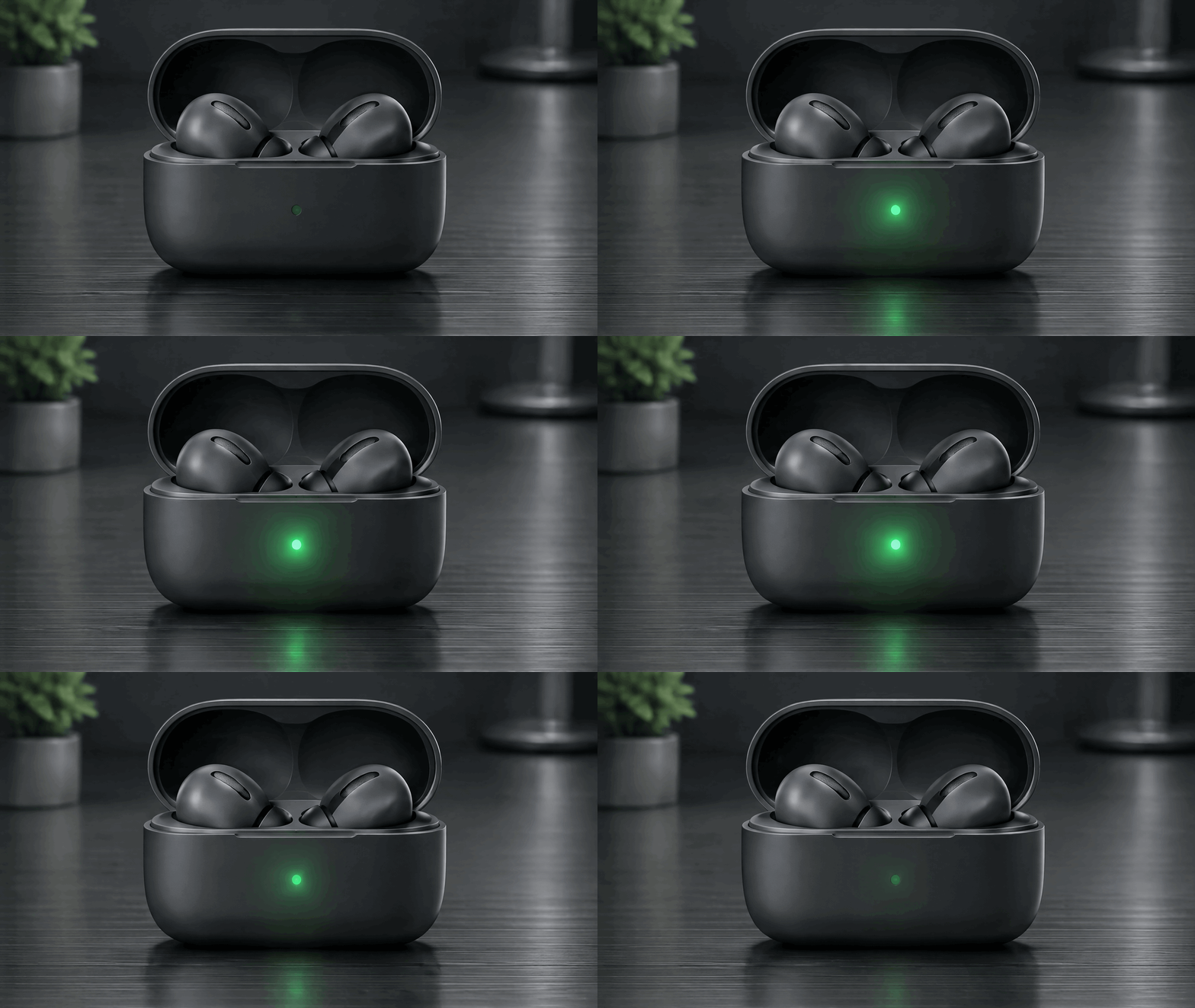
What we saw on the frames: The charging case and earbuds never shift, while the tiny front LED brightens from frame 1 to frame 5, casts a matching green glow onto the brushed aluminum desk below it, and dims cleanly back to frame 1 by frame 9.
UI Loading Animations (Prompts 7 to 8)
7. Minimalist three-pill UI wave loader (background: "transparent")
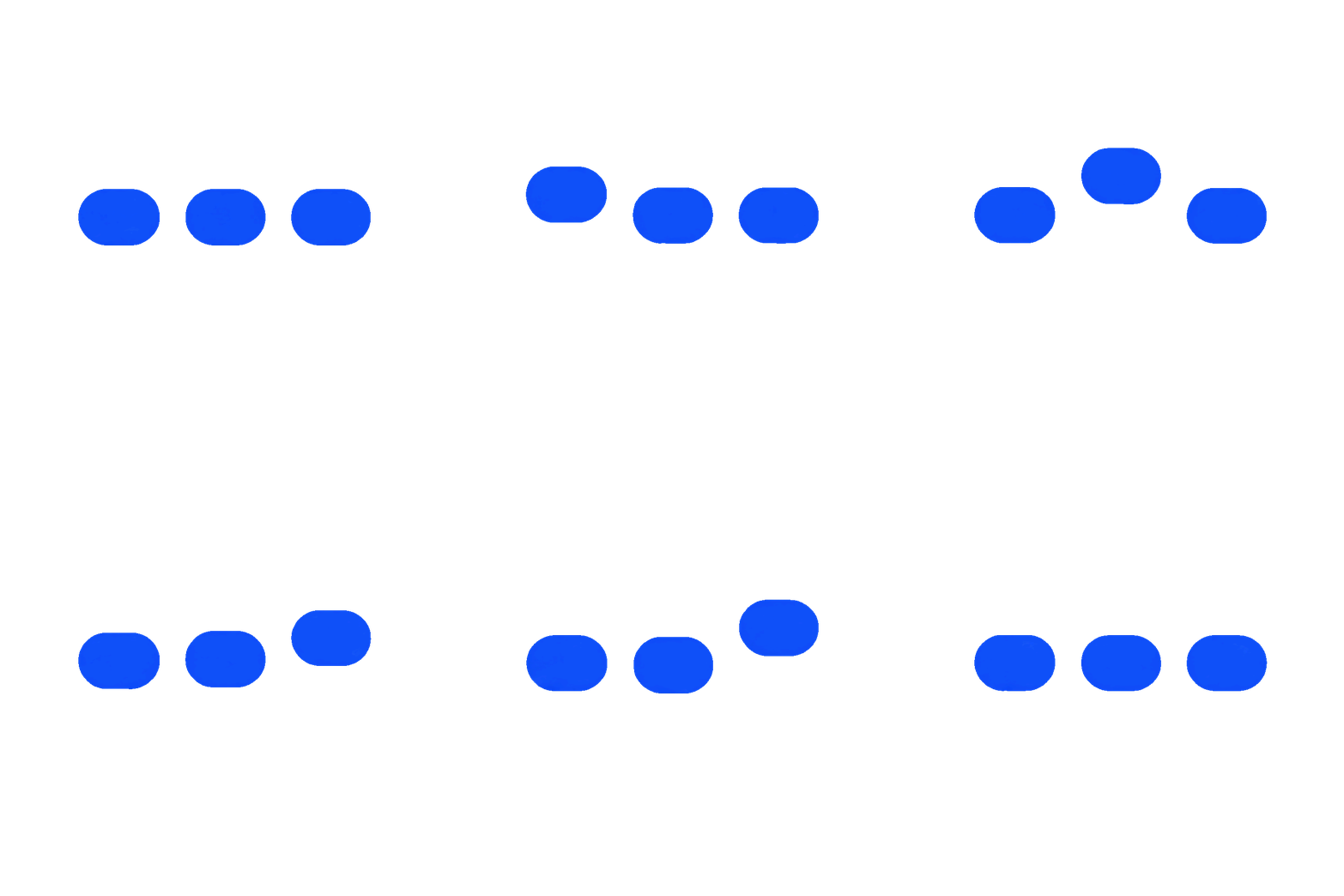
What we saw on the frames: This was the smallest file of our entire test at 85 KB (86,950 bytes), even at full 960×960 resolution. Because every pixel is either one flat cobalt blue or transparent, GIF’s LZW compression shrinks it to a fraction of a textured scene.
8. Paper airplane empty-state badge loader

What we saw on the frames: The two clouds stay pinned while the coral plane rises across frames 1 to 4 and glides back down across frames 5 to 8. Even though we wrote “Flat colors, no gradients”, Flare added a faint watercolor-paper grain inside the blue circle, which raised the size from under 100 KB to 616 KB; add “solid hex-like flat fill, zero paper grain” if you want pure flat compression.
Logo Micro-Animations (Prompts 9 to 10)
9. Brand wordmark with a flickering emblem

What we saw on the frames: Sunburst kept every letter of “EMBER” and both crossed copper logs rock-steady across all 8 frames while stretching and settling only the center flame tip. At 484 KB, it drops straight into email signatures, Notion headers, or GitHub READMEs.
10. Transparent app icon compass settle (background: "transparent")
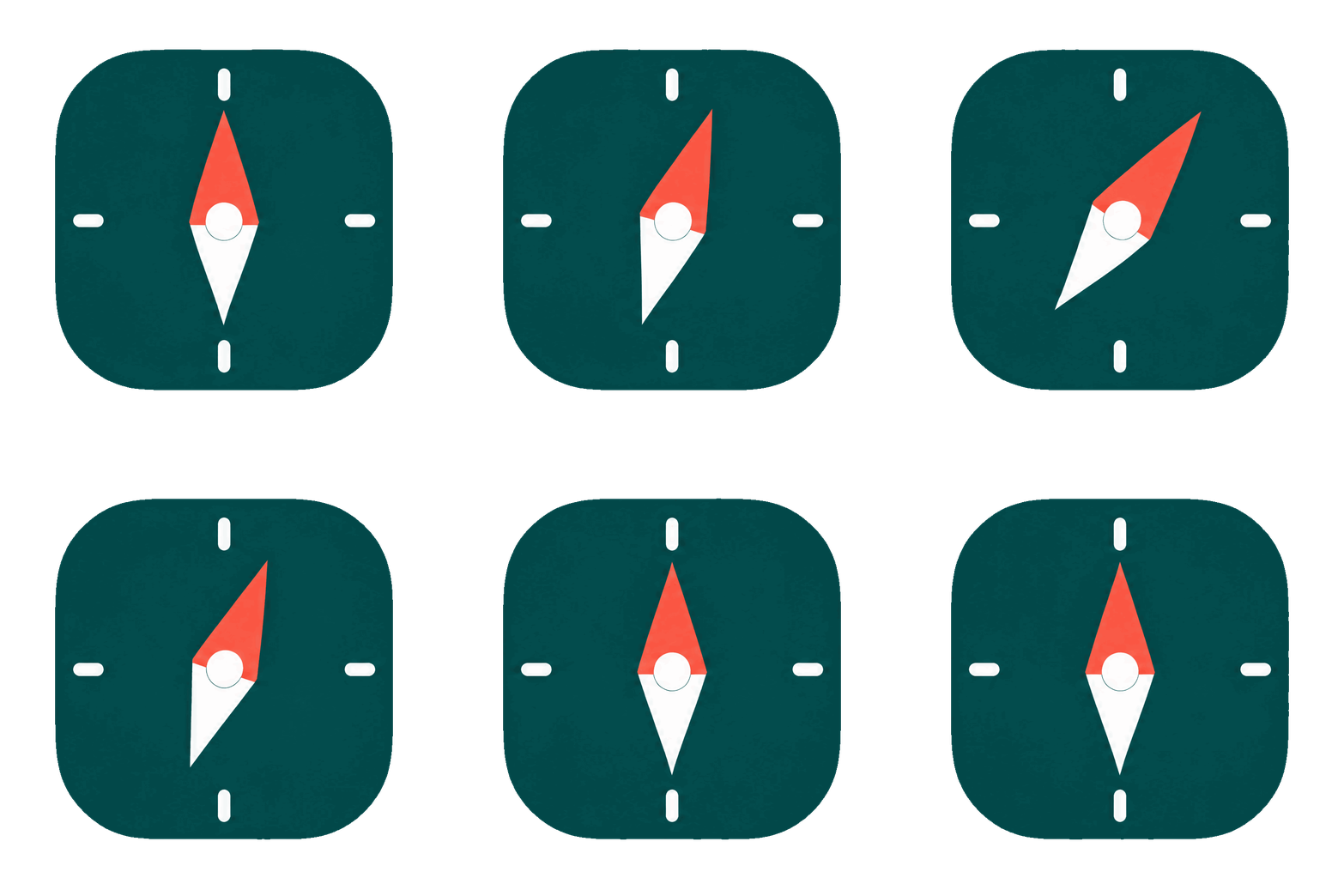
What we saw on the frames: With only 8 frames available, Flare simplified our two-part motion request: the needle swung roughly 35 degrees clockwise across frames 2 to 4 and eased smoothly back to dead north across frames 5 to 8, skipping the left overshoot. Keep icon prompts to a single swing-and-return when frameCount is 8.
Weather & Nature Loops (Prompts 11 to 12)
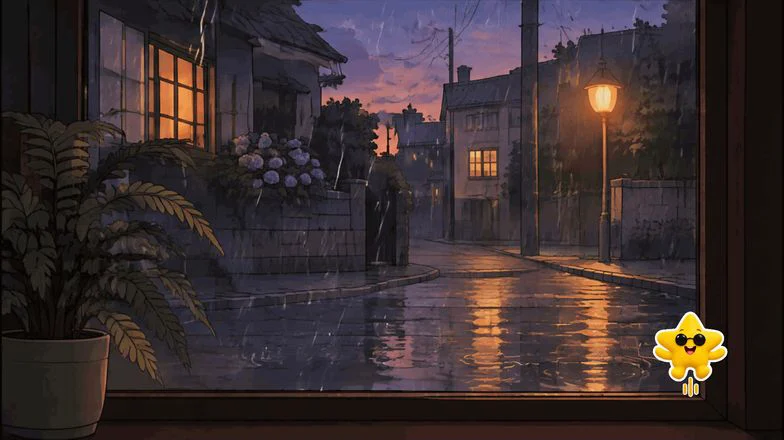
11. Rainy dusk window with streetlamp puddle ripples
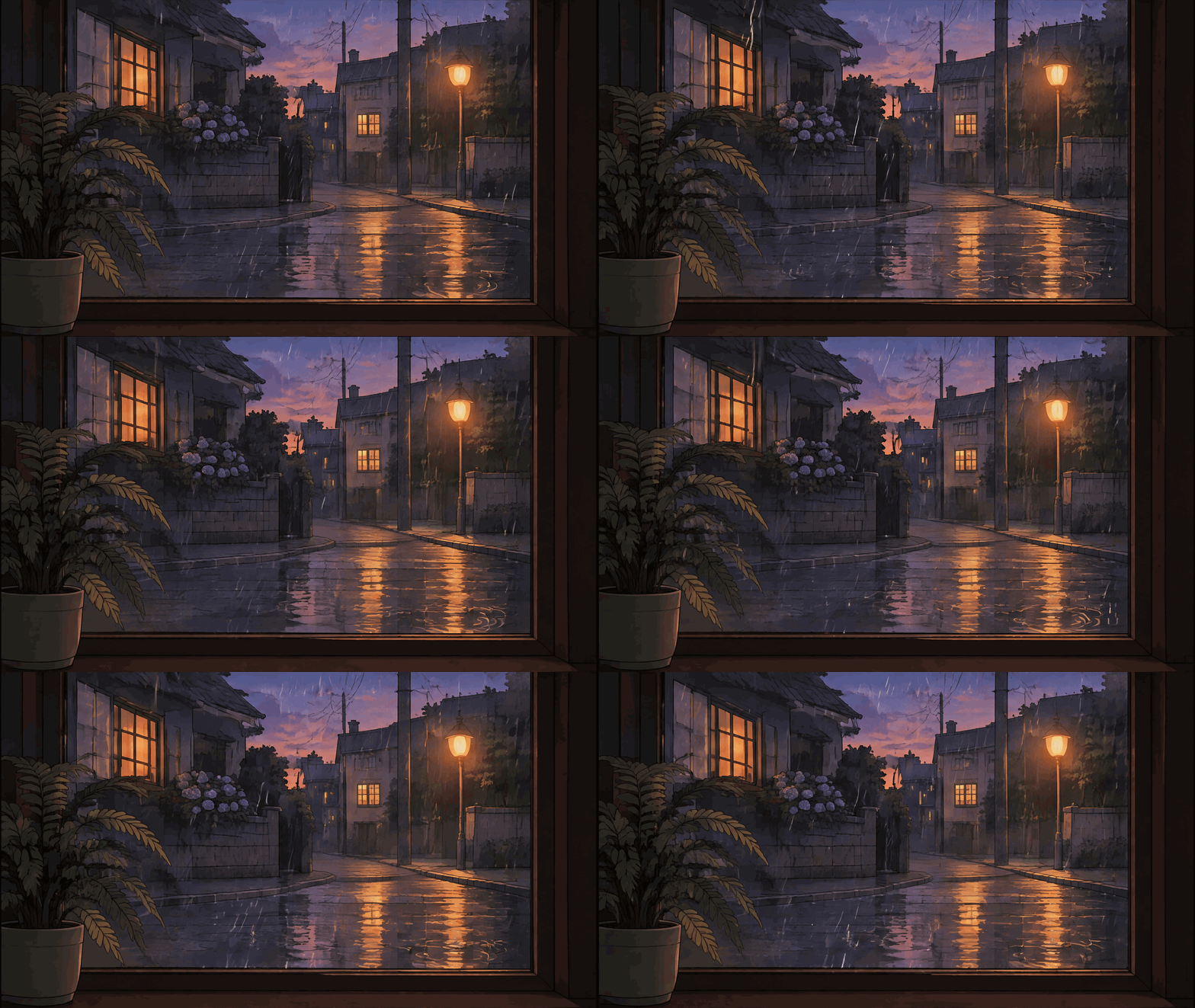
What we saw on the frames: Framing the shot through a stationary dark wooden window and indoor fern gives the viewer’s eye a motionless anchor, so shifting rain lines and puddle ripples read as continuous weather even in 9 frames.
12. Snowy twilight campfire at the 16-frame ceiling
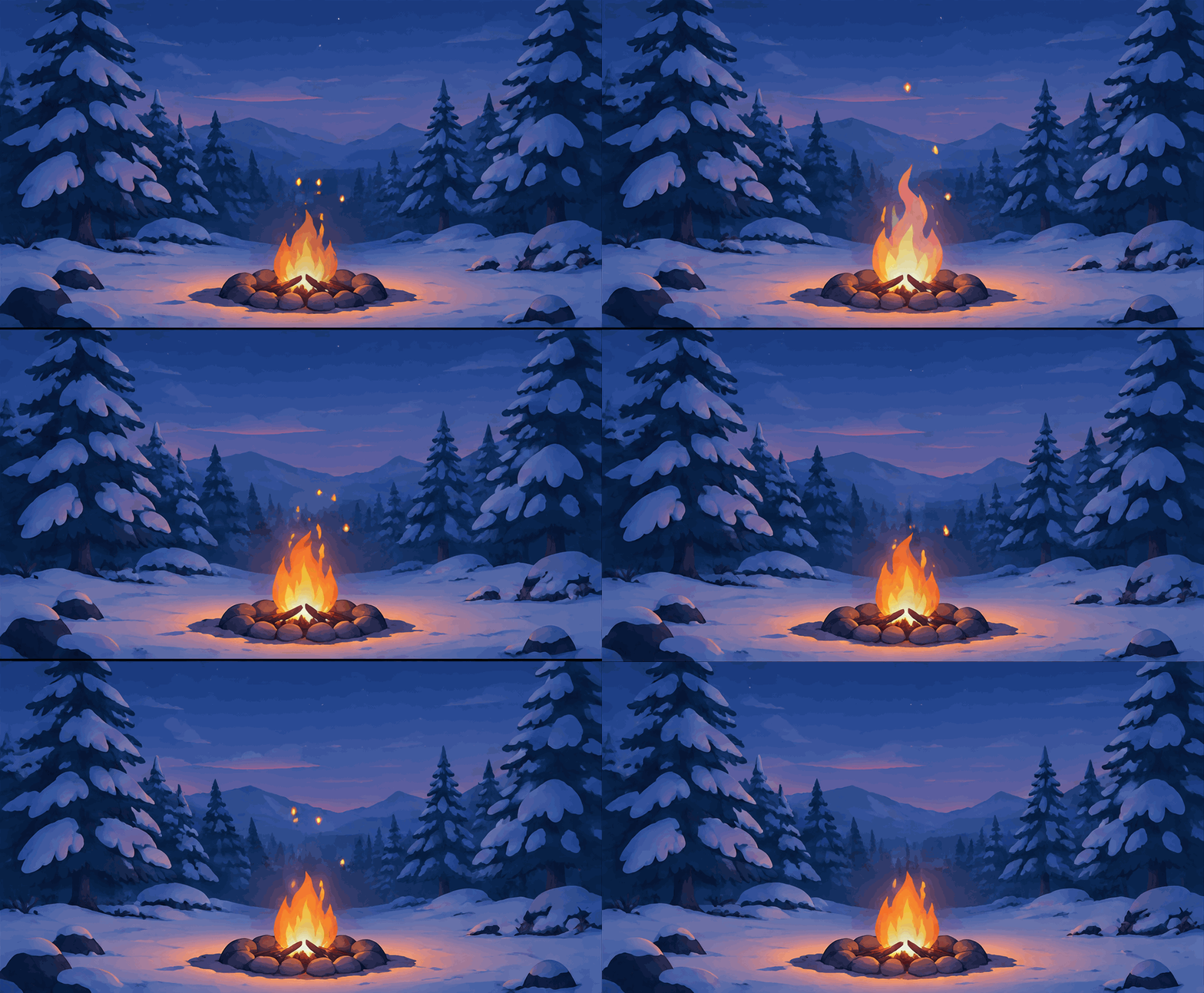
What we saw on the frames: Pushing frameCount to the maximum 16 frames gave the fire noticeably smoother flicker pacing at 120 ms per frame, while automatically stepping each frame down from 1280×720 to 960×528 px so all 16 panels fit on one 1K sheet.
First-to-Last-Pose Loop (Prompt 13)
13. Vintage brass metronome with matched start and end frames
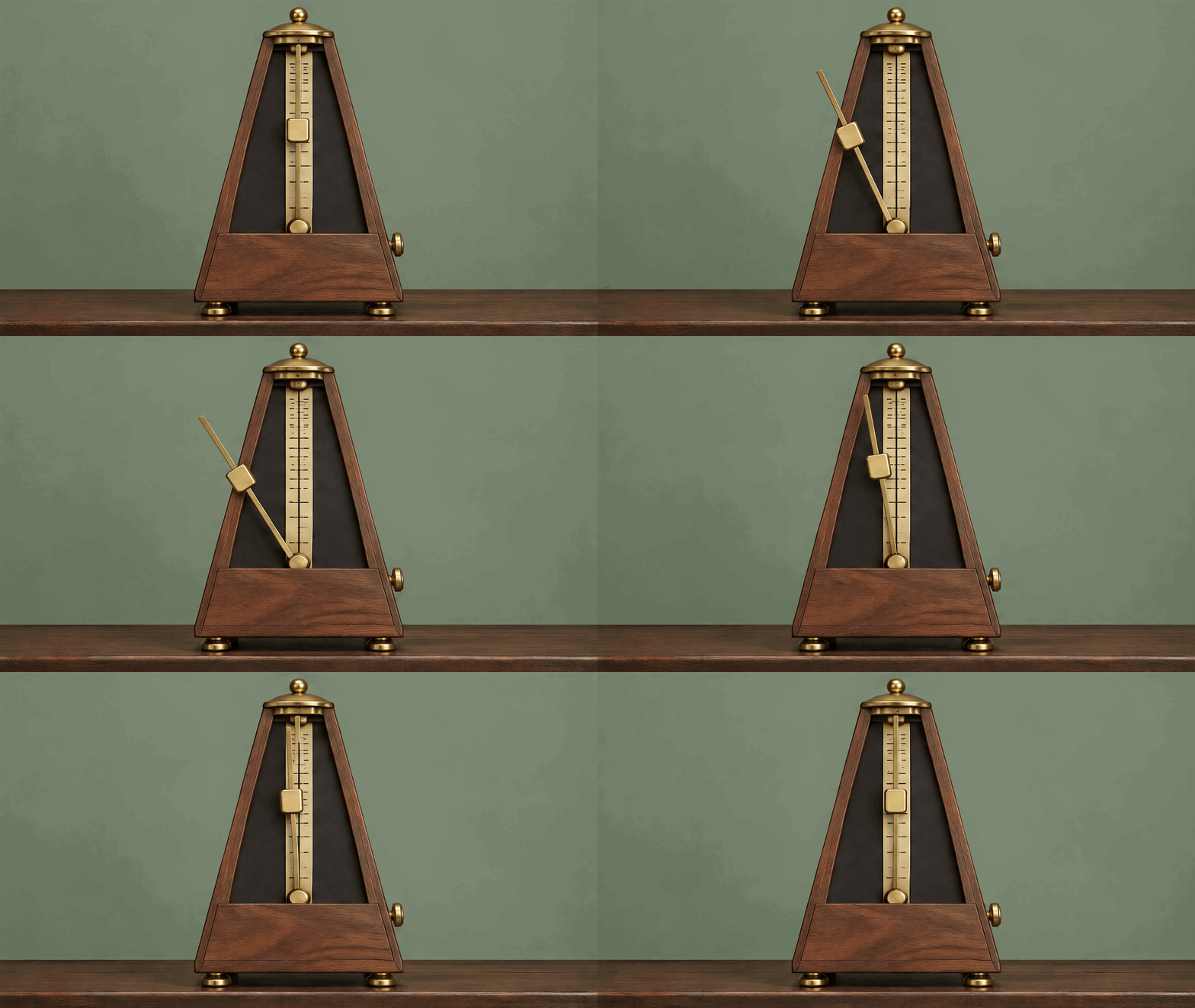
Naming both “On frame 1…” and “on the final frame…” with the exact clock-face angle (12 o’clock upright) gave us our cleanest mechanical loop closure. Here are extracted frames 1, 4, 8, and 9 side by side:

Captioned Meme GIF (Prompt 14)
14. Top-bar reaction meme with multi-word text
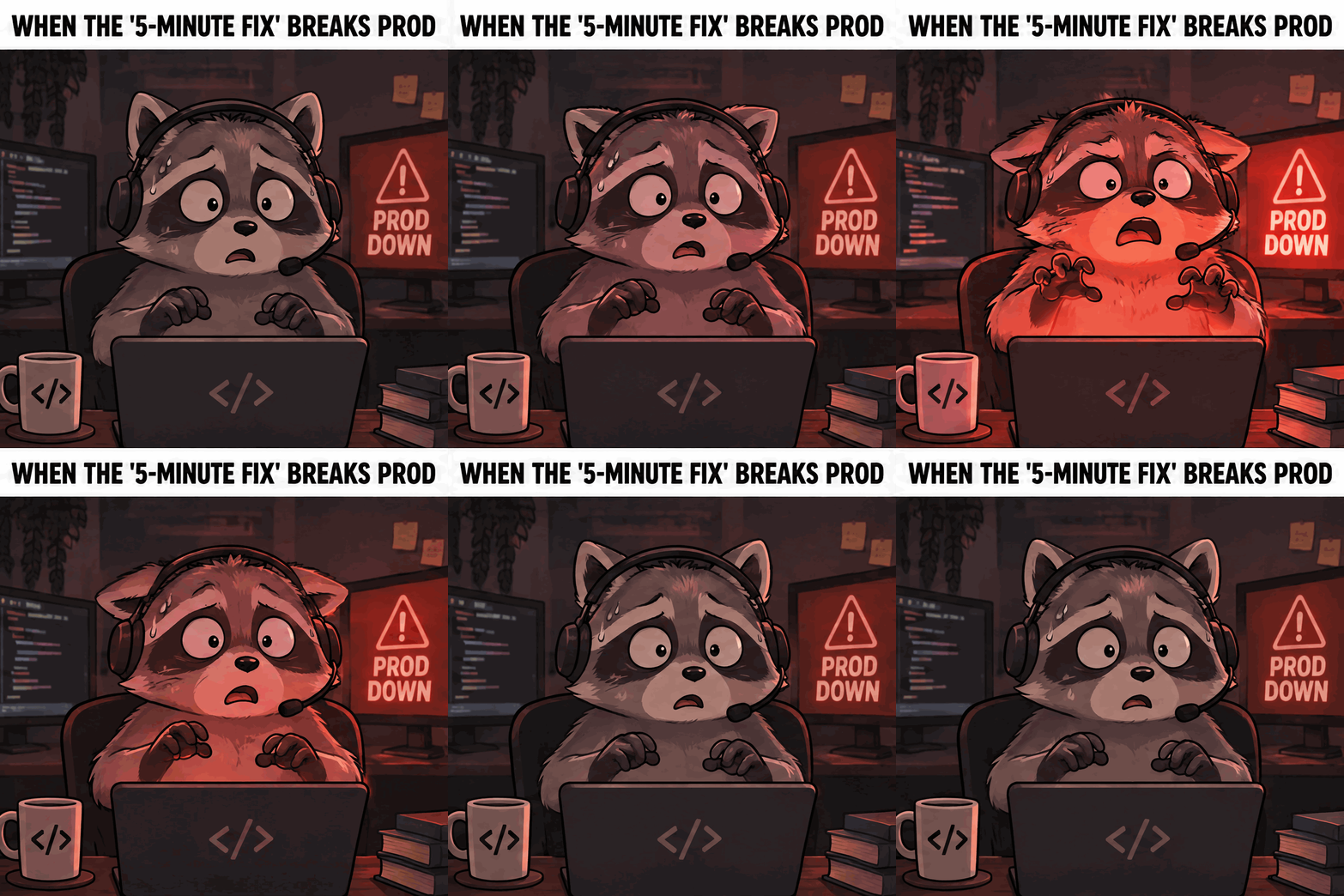
What we saw on the frames: Sunburst spelled every character of “WHEN THE ‘5-MINUTE FIX’ BREAKS PROD” (including the apostrophes and hyphen) plus an unprompted “PROD DOWN” alert monitor behind the raccoon without a single typo across all 8 frames. If you ever want pixel-identical typography or want to swap punchlines without spending another 0.40 credits, generate the character loop without text and place live text over it in ChatCut.
Photorealistic Portrait Loop (Prompt 15)
15. Rainy neon diner portrait (the locked-face method)
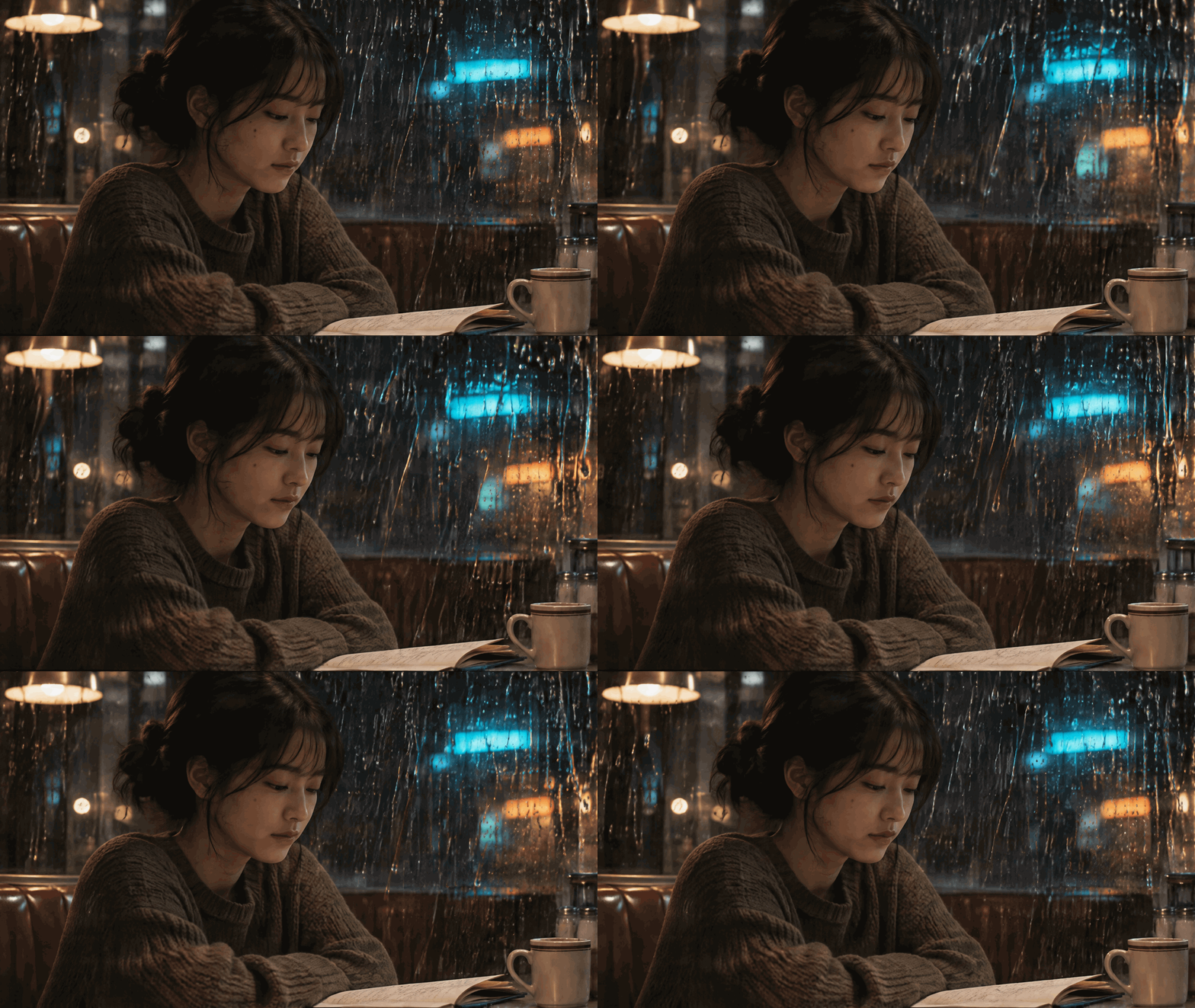
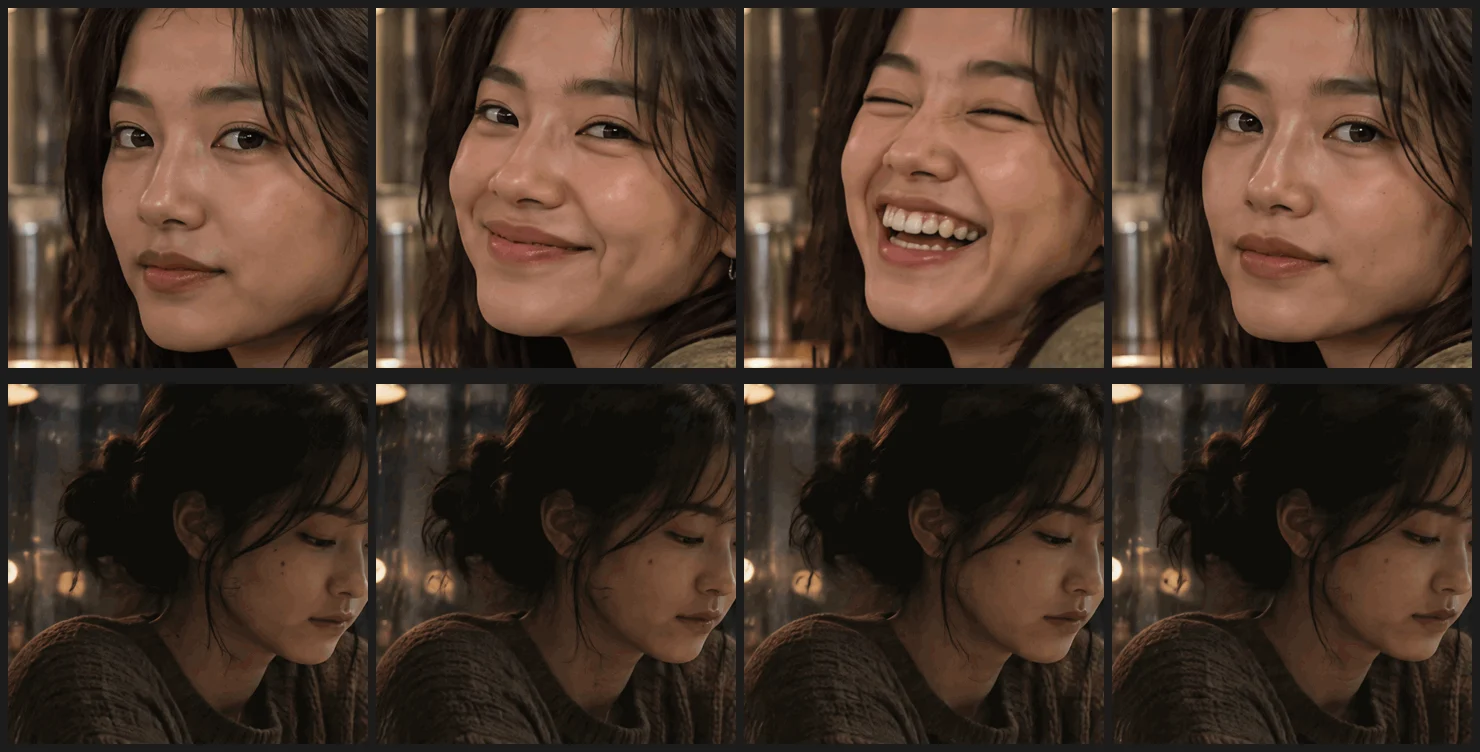
What we saw on the frames: Freezing the subject’s face, hands, and sweater while moving only foreground raindrops and neon bokeh produced a cinematic cinemagraph loop with zero facial warping. The next section shows why that prompt constraint is mandatory on photorealistic people.
Why Do Faces Drift in a ChatGPT GIF, and How Do You Fix It?
To test whether Images 2.6 distorts real human faces when they move, we ran a separate 9-frame photorealistic portrait on GPT Image 2.6 Flare (0.49 credits) asking the subject to turn toward the camera, break into a wide laugh, blink, and return to a calm expression:
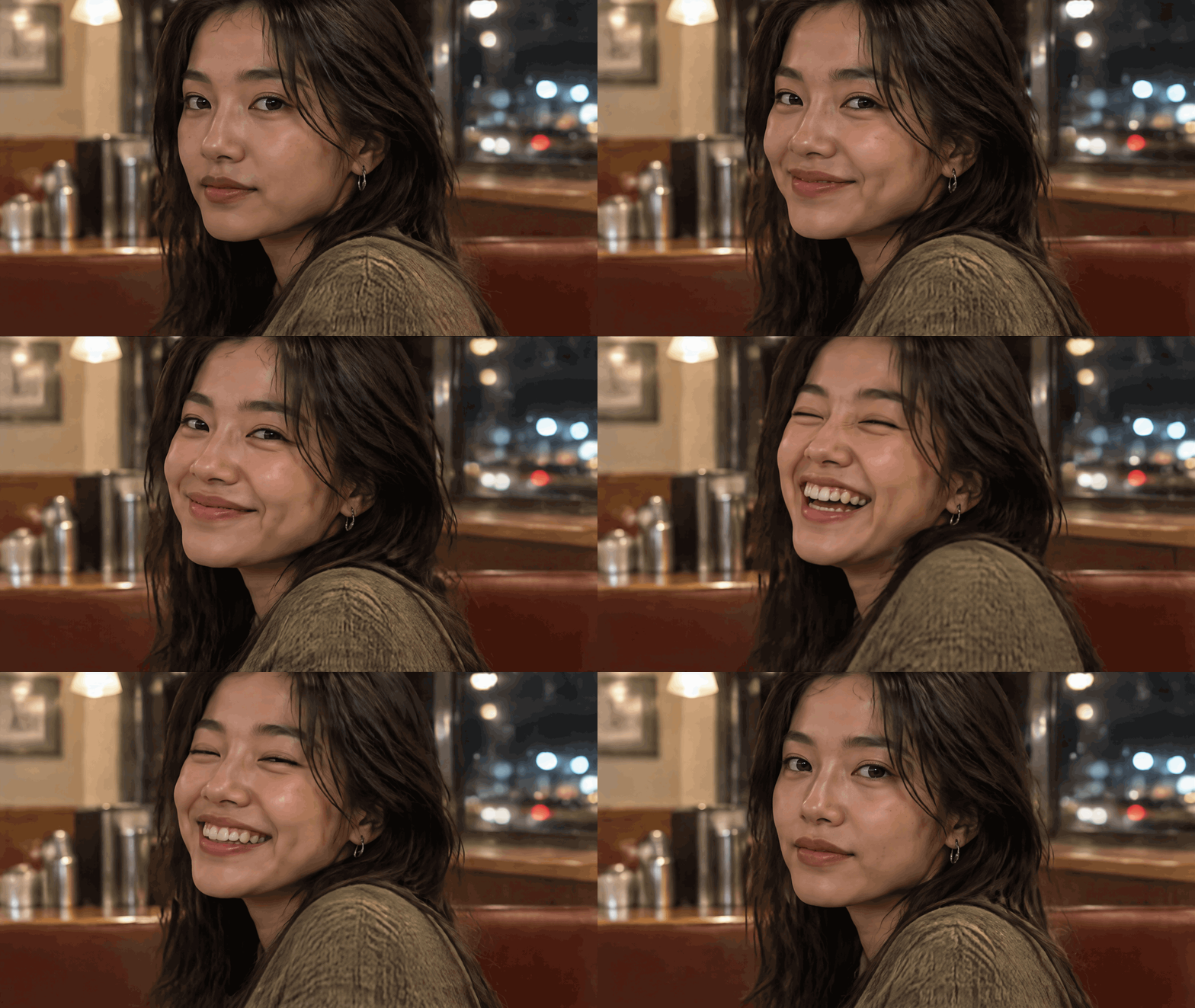
At small feed size, the laugh arc looks surprisingly passable. When we zoomed to 100% on frames 1, 4, 6, and 9, three clear artifacts showed up:
- Details appear and vanish between panels. A silver hoop earring is absent on frames 1 and 2, glints into existence on frame 3, becomes a full ring on frame 4, and disappears again on frames 8 and 9.
- Bone structure shifts mid-laugh. Because Images 2.6 paints 9 separate portraits on a 1K grid rather than warping one face mesh over time, frame 6 draws a wider jaw, narrower nose bridge, and different tooth spacing than frames 4 and 5.
- 256-color dithering speckles moving skin. Soft warm highlights sliding across cheeks force GIF’s limited palette to scatter visible color dots across the forehead.
Compare those 1:1 crops (top row) against Prompt 15’s locked-face diner window run (bottom row):
Three practical fixes that work:
- Use cinemagraph framing for photorealistic people: Lock the person’s face, eyes, and posture motionless in the prompt, and animate steam, rain, neon reflections, candle flicker, or a screen glow around them (as in Prompt 15).
- Stylize expressive reactions: When the face itself needs to wink, laugh, or panic, switch to cel-shaded illustration, clay, or comic style (as in Prompts 1, 3, and 14), where small line shifts read as hand-drawn charm rather than uncanny identity drift.
- Switch to a video model for real human performance: If a real person needs to speak, turn their head, or move naturally for several seconds, generate video with Seedance 2.5 or Kling 4.0 in ChatCut instead of a 9-frame sheet GIF.
Making a GIF From an Existing Photo (Image-to-GIF AI)
When readers search for an image to GIF AI workflow in ChatGPT, they usually want one of two jobs. According to OpenAI’s Image Generation API guide (under image edits with output_format: "gif") and the Images in ChatGPT help center, Images 2.6 accepts reference images alongside GIF prompts:
- Reusing a product or mascot in a new loop: Attach the product or character image, state what it controls (label, colors, silhouette), and ask for one small repeatable motion.
- Animating one detail in a scene: Attach the photo and apply the exact same locked-subject rule we proved above, telling the model to keep the person or packaging still while moving only steam, light, or weather. Remember that Images 2.6 still redraws each frame rather than masking pixels, so inspect fine print and faces before publishing.
AI GIF Generator Settings That Fit Slack, Discord, X, iMessage, and GIPHY
What lowering frameCount actually changes (our controlled test)
When a GIF comes out too large, the obvious instinct is to cut frameCount in half; you can also try compressing the exported GIF before generating it again. We tested that assumption on the exact same snowy campfire prompt (1.92-second total loop) at 16, 8, and 4 frames, and on the transparent “SHIP IT!” sticker at 8 and 4 frames:
| Test prompt & aspect ratio | frameCount × frameDurationMs | Per-frame pixels | Total pixels across loop | Measured GIF size | Settled ChatCut credits |
|---|---|---|---|---|---|
| Snowy campfire (16:9, Flare) | 16 × 120 ms (1.92 s) | 960×528 | 8.11M | 2.10 MB (2,204,994 B) | 0.48 |
| Snowy campfire (16:9, Flare) | 8 × 240 ms (1.92 s) | 1344×752 | 8.09M | 2.11 MB (2,215,826 B) | 0.77 |
| Snowy campfire (16:9, Flare) | 4 × 480 ms (1.92 s) | 1344×752 | 4.04M | 937 KB (959,048 B) | 0.77 |
| ”SHIP IT!” sticker (1:1, Sunburst, transparent) | 8 × 160 ms (1.28 s) | 960×960 | 7.37M | 1.09 MB (1,142,885 B) | 0.40 |
| ”SHIP IT!” sticker (1:1, Sunburst, transparent) | 4 × 320 ms (1.28 s) | 960×960 | 3.69M | 560 KB (573,636 B) | 0.40 |
Look at the first two rows: dropping a 16:9 GIF from 16 frames to 8 frames did not shrink the file at all (2.10 MB vs 2.11 MB) and cost 0.29 credits more. Because 16 frames pack into smaller 960×528 cells while 8 frames expand to 1344×752 cells, both loops contain roughly 8.1 million total pixels. Per-frame resolution caps out at 8 frames, so dropping from 8 frames down to 4 frames genuinely cuts total pixel area in half and cut both files by 50% to 57%.
Official platform GIF limits and how to hit them
Every native Images 2.6 loop we generated (85 KB to 3.16 MB) already fits standard social posts and chat attachments, while custom emoji and sticker packs enforce much stricter kilobyte caps:
| Platform & placement | Official file limit | Official source | How to configure your Images 2.6 GIF |
|---|---|---|---|
| Slack custom emoji | Under 128 KB, max 50 frames (regular chat file uploads allow up to 1 GB) | Slack Custom Emoji Help & Slack File Uploads | Use 1:1, background: "transparent", flat vector colors, and 4 to 8 frames. Minimal icons (like Prompt 7 at 85 KB) pass natively; resize detailed stickers from 960×960 down to 128×128 px. |
| Discord custom emoji & chat | Under 256 KB for custom server emoji; 20 MB in regular chat (50 MB Nitro Basic, 1 GB Nitro) | Discord Custom Emojis & Discord File Attachments FAQ | Every 8-to-16-frame GIF we ran (up to 3.16 MB) posts directly in regular Discord chat; downscale 960×960 stickers to 128×128 or 256×256 px for server emoji slots. |
| Apple iMessage Stickers | 500 KB max per sticker in Sticker Packs (@3x sizes: 300×300 Small, 408×408 Regular, 618×618 Large) | Apple HIG: iMessage Apps and Stickers | Set 1:1, background: "transparent", and flat shading. Prompts 3, 9, and 10 (429 KB to 488 KB) cleared 500 KB at 960×960; for busier badges, use 4 frames or resize to 408×408 px. |
| X (Twitter) posts | 15 MB on web, 5 MB on mobile (1 GIF per post; ≤1280×1080 px and ≤350 frames recommended) | X Picture & GIF FAQs | Default 9-frame 16:9 (1280×720) or 8-frame 1:1 (960×960) GIFs stayed between 85 KB and 3.16 MB in our runs, clearing mobile’s 5 MB cap with room to spare. |
| GIPHY uploads | Up to 100 MB and 15 seconds (recommends ≤8 MB, ≤6 seconds, and under 200 frames) | GIPHY Creation Best Practices | Any 8-to-16-frame Images 2.6 loop (0.88 s to 1.92 s, under 3.2 MB) sits well inside GIPHY’s 8 MB / 6-second sweet spot. |